- Go 96.4%
- Makefile 1.8%
- Shell 1.3%
- HTML 0.5%
| Filename | Latest commit message | Latest commit date |
|---|---|---|
|
|
||
| .github | ||
| assets | ||
| cmd | ||
| docs/cra | ||
| internal | ||
| third_party | ||
| tools | ||
| web | ||
| .gitignore | ||
| go.mod | ||
| go.sum | ||
| HOW_IT_WORKS.md | ||
| LICENSE | ||
| make-desktop.sh | ||
| Makefile | ||
| README.md | ||
| screenshot.png | ||
| SECURITY.md | ||
| TEST.md | ||
| THIRD_PARTY_LICENSES.md | ||


MDEdit
A Markdown editor with a live, GitHub-styled preview and PDF export, written in Go with the Gio UI toolkit. Runs on Linux (X11 and Wayland), FreeBSD, macOS and Windows.
Free for non-commercial use; commercial use needs a licence, see License.

Building
make deps     # lists the system packages to install for your OS
make          # builds bin/mdedit
make install  # binary, menu entry and icons under /usr/local (PREFIX=... to change)
make install (run with sudo) also adds MDEdit to the application menu on
Linux and FreeBSD desktops: share/applications/mdedit.desktop (categories
Development, Office and Science; it opens Markdown files) and the icon in
all standard sizes under share/icons/hicolor. make desktop only writes
bin/mdedit.desktop; make icons redraws the icons from tools/mkicon.
For a per-user install without root, make-desktop.sh is still there.
On macOS, make macos builds bin/MDEdit.app with its icon; drag it into
Applications. Markdown files then offer MDEdit under the Finder's "Open
With" (it doesn't make itself the default app), and you can drop a file on
its Dock icon. The app is signed ad hoc, which is all a locally built app
needs; to give it to someone else it would need a Developer ID signature.
On FreeBSD both make and gmake work. The result is a single executable
containing all Go code and fonts; it only loads the system's windowing and
GPU libraries at run time.
Usage
mdedit [file.md]                   # edit (a missing file is created on save)
mdedit -pdf file.md [-o out.pdf]   # export without opening a window
All commands are in the menu bar (File, Edit, Format, Insert, View, Help); the toolbar holds the common ones: bold, italic, underline, alignment, numbered/bullet lists and table. Main shortcuts (⌘ instead of Ctrl on macOS):
| Shortcut | Action | Shortcut | Action |
|---|---|---|---|
| Ctrl+N / Ctrl+O | New / Open | Ctrl+B / I / U | Bold / Italic / Underline |
| Ctrl+S / Ctrl+Shift+S | Save / Save as | Ctrl+Shift+L/E/R | Align left / center / right |
| Ctrl+E | Export PDF | Ctrl+1 … 6, Ctrl+0 | Heading 1–6 / paragraph |
| Ctrl+/ | Cycle split/editor/preview | Ctrl+T | Insert table |
| Ctrl+Q | Quit | Ctrl+K / Ctrl+Shift+K | Link / code block |
| Ctrl+F / Ctrl+R | Find / Replace | Ctrl+G / Ctrl+Shift+G | Next / previous match |
| Ctrl+Shift+D | Dark / light theme |
View → Dark Theme (Ctrl+Shift+D) switches the whole window — menus,
dialogues, editor and preview, including code highlighting — to a dark theme
modelled on GitHub's; the menu item then reads Light Theme. The choice is
saved in settings.json in the user's config directory
(~/.config/mdedit/ on Linux and FreeBSD, ~/Library/Application Support/mdedit/ on macOS). Until a choice is saved, mdedit follows the
system's dark mode where it can detect it (macOS, Windows) and starts light
elsewhere. Exported PDFs are always light, since they are meant for paper.
Find (Ctrl+F) and Replace (Ctrl+R) open a bar above the editor; the selected text becomes the search text. All matches are highlighted, the counter shows "3 of 12", Enter and Shift+Enter go to the next and previous match (wrapping around), and Escape closes the bar. Matching ignores case unless Match case is ticked. Replace replaces the selected match and moves to the next; Replace All replaces every match in one undoable step.
Pressing Enter in a list item or quote starts the next item (numbers count up); Enter on an empty item ends the list. Shift+Enter inserts a plain line break.
Tab inserts spaces to the next 4-column stop; on list items (or several selected lines) Tab and Shift+Tab indent and outdent, nesting list items. Tab characters in opened or pasted text are converted to spaces, which is how CommonMark reads them anyway (Gio's text engine can't display tabs).
Insert → Table of Contents adds a nested list of links to all headings,
between <!-- toc --> and <!-- /toc --> markers (hidden when rendered,
and the convention markdown-toc and VS Code use). Right-click in the editor
or preview and choose Update Table of Contents to regenerate it after
editing headings; the right-click menu also has Cut, Copy and Paste.
The spelling of the text is checked as you type: misspelt words get a red
wavy underline once the caret has left them. Right-click one to see the
most likely corrections at the top of the menu; click one to replace the
word. Add to Dictionary remembers the word for good (in settings.json),
Ignore until mdedit quits. Code, maths, HTML, link targets, URLs, file
names, words with digits, acronyms in capitals and camelCase words aren't
checked. Edit → Hide Spelling Errors turns the checking off.
English (American and British spellings, from
SCOWL) is built in. Edit → Spelling
Languages… adds about 60 more, such as Dutch, German, French and Spanish:
tick them and click OK, and the ones not on your computer yet are
downloaded in the background (the LibreOffice/Hunspell dictionaries, via
wooorm/dictionaries; each has its
own licence). They are kept in dictionaries/ next to settings.json. You
can tick several: a word is correct if any of them knows it, which suits
Dutch or German text full of English terms. Compound words (Dutch
"spellingcontrole", German "Rechtschreibprüfung") and elisions (French
"l'homme") are understood. In the browser the dictionaries are downloaded
again on each visit.
The PDF font box in the toolbar, above the preview, chooses the font of the text and headings
in the preview and the PDF from the fonts installed on your computer. Drop
down the list with the arrow, or click in the box and type to filter it; click
an entry (or use the arrow keys and Enter) to choose it. Escape or a click
elsewhere leaves the font as it was. Code stays monospaced, and mdedit -pdf
uses the same font. The list holds the fonts a PDF can embed: TrueType outlines
(.ttf, and .ttc collections, but most .otf files use PostScript outlines
and aren't listed) with Western accents, and a licence that allows embedding.
A family without bold or italic uses its regular face for those. The browser
version can't read installed fonts, so it keeps the built-in font.
Next to it, the size box sets the base text size of the preview and the PDF, from 1 to 80 pt: click its arrows or use the arrow keys to go a whole size up or down, or type a size (10.5 and 10,5 both work) and press Enter. Everything scales with it, also code, maths and headings. The default is 10.5 pt; the preview follows in proportion, as its size on screen isn't in points. The browser version has this box too.
The caret in the editor is a steady yellow block, with the character under it in red, so you see at a glance where you are.
Click anywhere in the preview to put the editor's caret on that spot in the Markdown, scrolled to the editor's top line so you don't have to look for it: on the very word you clicked (even inside bold text, links or a line the preview wrapped differently), or at the start of a formula or image. Handy for fixing a typo you spot while reading. Links in the preview still open as before.
The File menu lists the last five files you opened or saved, newest
first; choosing one opens it (asking first about unsaved changes). The
list is kept in settings.json; a file that has since been deleted is
dropped from it. The browser version has no recent files, since a web page
can't reopen a file without you picking it again.
View → Show Outline (Ctrl+Shift+O) opens a sidebar listing the document's headings, indented by level. Click one to show it at the top of the editor and the preview; the heading of the section you are typing in is highlighted. The sidebar stays open (or closed) the next time.
YouTube videos
Videos use GitHub's notation, a link around the video's still:
[](https://www.youtube.com/watch?v=VIDEO_ID)
Insert → YouTube Video… (or the toolbar button) asks for the video ID — a full YouTube link works too — and an optional title. The preview shows the still at 66% of the width with a play button; clicking it opens the video in the browser. PDFs show just the still, linked to the video.
Stills are downloaded in the background and cached in ~/.cache/mdedit/images
(~/Library/Caches/mdedit/images on macOS). Only YouTube stills are fetched,
never other remote images; when a video has no full-resolution still,
YouTube's standard one is used.
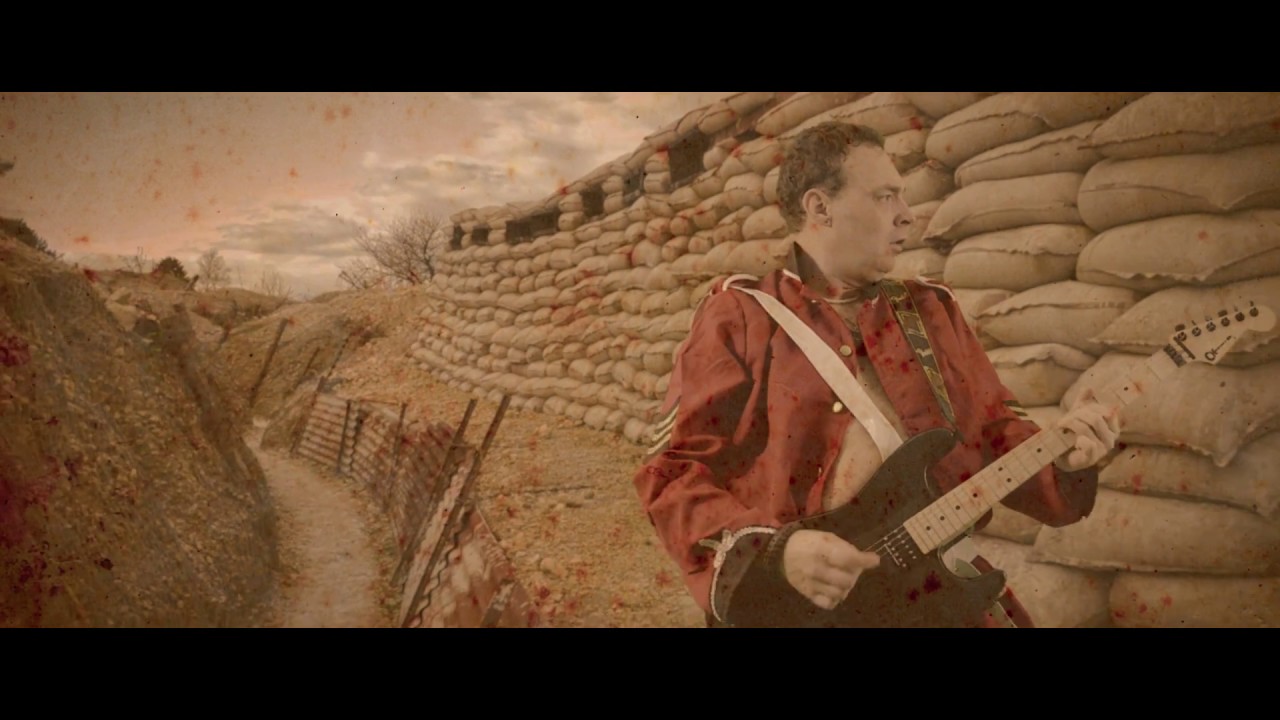
Example me covering the Trooper:
Maths
Display maths goes between $$ lines (or ```math fences, as on GitHub);
inline maths between single dollars: $e^{i\pi} + 1 = 0$. As in Pandoc and
Typora, $ followed by a space, or a closing $ before a digit, isn't
maths, so $5 and $10 stays text; write \$ for a literal dollar sign.
mdedit typesets maths itself (no JavaScript, no network) with the STIX Two
Math font (SIL Open Font License, embedded): fractions, roots, sub- and
superscripts, large operators with limits, stretchy \left … \right
delimiters, accents, Greek and symbols, \text, \mathbb / \mathcal /
\mathbf …, and the matrix / pmatrix / bmatrix / vmatrix, cases,
aligned and array environments. Lines separated by \\ (with &
alignment points) work without an environment too. Unknown commands are
shown in red. In PDFs, maths is drawn as vector outlines, so it isn't
selectable as text.
Insert → Math Block (Ctrl+Shift+M) and Format → Inline Math add the markup.
Example 1:
E=mc^2
Example 2:
\sqrt{a}=b \qquad \text{iff} \quad b^2=a
Example 3:
\sqrt{e}, \sqrt{T},\sqrt{T^2_1}
Fenced blocks (code blocks)
Fenced code blocks are highlighted by the language after the fence
(```go, ```bash, ```C#, ```c++, ```yaml, ```{.python}
…), covering about 250 languages and their usual aliases.
On macOS the usual ⌘ navigation works in the editor: ⌘←/⌘→ to the start/end of the line, ⌘↑/⌘↓ to the start/end of the document (add ⇧ to select), and ⌘⌫ to delete to the start of the line. Home/End (fn+←/→) work everywhere.
Markdown has no underline or alignment syntax, so mdedit uses the HTML that
GitHub and Typora render: <u>text</u>, and a <div align="center"> wrapper
with blank lines inside so the content is still parsed as Markdown.
The divider between editor and preview can be dragged. The preview follows
the caret. Clicking a #anchor link jumps to the heading, relative .md
links open in the editor, and other links open in the system browser.
If the window is closed with unsaved changes, they are written to
~/.cache/mdedit/ (~/Library/Caches/mdedit/ on macOS) and the path is
printed on stderr.
In the browser (WebAssembly)
The same editor also runs in a web browser. The desktop version remains the main one; the browser version is the same program compiled to WebAssembly, with a different way of reaching files.
make wasm     # bin/web (the web page) and bin/mdedit-web (a small web server)
make serve    # try it on http://localhost:8089
bin/web holds index.html, mdedit.wasm (with compressed .gz and, if
the brotli command exists, .br copies), Go's wasm_exec.js and the icon.
Any web server can serve it if it sends .wasm files as application/wasm;
mdedit-web does that and sends the compressed copies (about 6–8 MB instead
of 30 MB).
In a FreeBSD jail. On the FreeBSD host, build as yourself, then install as root:
make wasm
sudo make install-jail
This copies the web files to
/zroot/sylve/jails/100/usr/local/www/content_renderer/, the server to the
jail's /usr/local/bin/mdedit-web, and the service script to the jail's
/usr/local/etc/rc.d/mdedit_web; it enables the service in the jail's
rc.conf and, if the jail is running, (re)starts it. Override the
locations with JAIL_ROOT=… and WEBROOT=…. The service listens on port
8089 as user www; change it with:
sudo sysrc -R /zroot/sylve/jails/100 mdedit_web_addr=":8089"
sudo sysrc -R /zroot/sylve/jails/100 mdedit_web_flags="-tls-cert /usr/local/etc/ssl/mdedit.crt -tls-key /usr/local/etc/ssl/mdedit.key"
and service mdedit_web restart inside the jail. Logs go to the jail's
/var/log/mdedit_web.log.
Use HTTPS. Browsers only allow web pages to use the clipboard over
HTTPS (or on localhost). Over plain HTTP from another machine, copy and
paste within mdedit won't work. Give mdedit-web a certificate
(-tls-cert, -tls-key), or put it behind a web server or proxy that
does HTTPS. For Caddy, assets/caddy/Caddyfile is a ready site block
(markdown.phonax.com → the jail's port 8089); fill in the jail's address.
What is different in the browser:
- Files. A web page can't read or write your disk. File → Open shows the browser's file picker; Save, Save As and Export PDF download the file. The text is kept in the browser (localStorage) as you type, so a reload or a closed tab loses nothing, and the next visit continues where you were.
- Images. Images next to a document can't be read, so they show their alt text; YouTube stills work as on the desktop.
- Shortcuts. On a Mac they use ⌘, elsewhere Ctrl. Browsers keep a few keys for themselves (Ctrl/⌘+N, T and W): use the menus for New and Insert Table. There is no Quit; close the tab.
- Theme. The first visit follows the browser's light or dark mode; View → Dark Theme is remembered in the browser.
- Size. The first visit downloads about 6–8 MB; after that the browser's cache is used until a new version is installed.
Supported Markdown
CommonMark plus GitHub extensions: headings (ATX and Setext), paragraphs and
hard line breaks, emphasis, strong, strikethrough, inline code, fenced and
indented code blocks with syntax highlighting (via
chroma, ~250 languages), block quotes
(nested, with any content), ordered/unordered/nested lists, task lists,
tables with column alignment, horizontal rules, links, autolinks, local
images (PNG, JPEG, GIF) and backslash escapes/entities.
Layout
cmd/mdedit         entry point (desktop and browser)
cmd/mdedit-web     web server for the browser version
internal/mdmodel   Markdown → flat list of styled blocks (goldmark), highlighting
internal/render    device-independent layout: blocks → positioned primitives
internal/ui        Gio window, preview painter, file dialog
internal/pdfout    PDF painter with page breaking (fpdf)
internal/edit      formatting commands as pure functions on text + selection
internal/tex       TeX maths typesetter (embedded STIX Two Math)
internal/youtube   YouTube URLs and video IDs
internal/imgcache  downloads and caches YouTube stills
internal/vfs       file storage for images: the disk, or memory in the browser
tools/sbom         writes the software bill of materials (CycloneDX)
internal/lint      code-style test: only short closures, ≤4 indent levels, ≤40-line functions
tools/mkicon       draws the application icon
tools/glyphdump    prints how a character is stored in the font (see HOW_IT_WORKS.md §6)
web/index.html     the web page around the browser version
assets/freebsd     rc.d script for mdedit-web
assets/caddy       Caddy reverse-proxy site block for the browser version
The preview and the PDF share internal/render, so both use the same layout.
See HOW_IT_WORKS.md for how the layers fit together, how input flows through the code, where to add features and where to look for bugs.
Releases
Every push to main that passes the tests and the vulnerability scan becomes a
release on the releases page: Linux,
macOS (Apple Silicon) and Windows builds, the browser version, their SBOM and
SHA256SUMS, with the version going up one minor step (0.1.0, 0.2.0, …). Each file
is signed by GitHub; check a download with
gh attestation verify FILE --repo rdoetjes/mdedit. FreeBSD is built from source.
At start-up the desktop version checks whether there is a newer release and, if so, offers to open its page; offline, it carries on as normal. Help → Check for Updates checks at any time, and Help → Don't Check for Updates at Start turns it off.
mdedit isn't signed with an Apple or Microsoft certificate, so the first start asks for permission once. macOS: open the app, click Done, then System Settings → Privacy & Security → Open Anyway. Windows: More info → Run anyway.
Security
Report vulnerabilities as described in SECURITY.md. A document can
come from anyone, so links are limited: mdedit opens http, https and mailto links,
refuses other kinds, and asks before opening a local file other than Markdown. The
EU Cyber Resilience Act file is in docs/cra. make security
scans for known vulnerabilities and make sbom writes the software bill of materials.
License
Copyright © 2026 Phonax-Soft.
mdedit is free to use, change and share for non-commercial purposes under the PolyForm Noncommercial License 1.0.0. That covers personal use with no anticipated commercial application (study, hobby projects, amateur pursuits) and use by non-commercial organisations such as charities, schools, public research organisations and government institutions; the licence text decides what counts.
Commercial use needs a separate licence. That includes using mdedit to write something you sell or are paid for, such as a book. To get a licence, e-mail the maintainer at the address on their GitHub profile, or open an issue.
This makes mdedit source-available, not open source in the OSI sense. It comes without warranty, as the licence says. mdedit claims no rights in the documents you write with it.
Parts by others stay under their own licences, listed in THIRD_PARTY_LICENSES.md. Spelling dictionaries aren't part of mdedit: they are downloaded on request, each under its own licence.